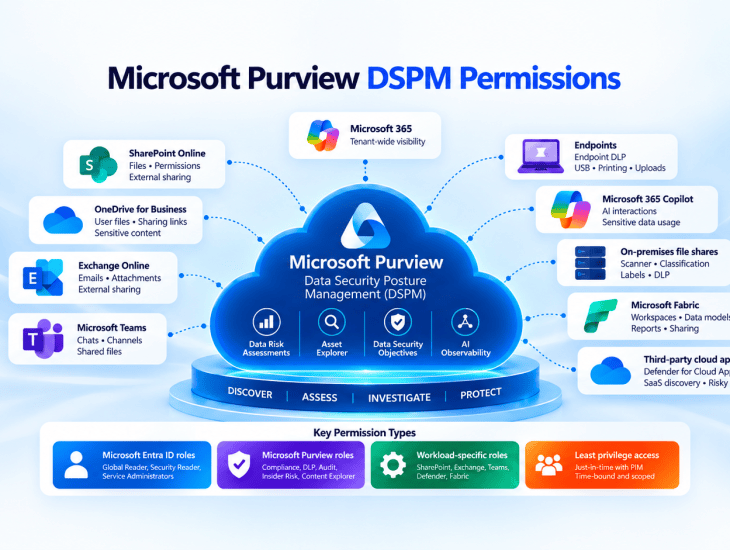
Microsoft Purview | Data Security Posture Management | RBAC | Least Privilege | Data Security Assessment
Introduction
One of the most important questions when starting a Microsoft Purview Data Security Assessment is:
What permissions do I need to assess all the organization’s data locations?
The answer is more complicated than assigning the Compliance Administrator role.
Modern enterprise data is distributed across SharePoint Online, OneDrive, Exchange Online, Microsoft Teams, endpoints, Microsoft 365 Copilot, Microsoft Fabric, on-premises file servers and third-party cloud applications.
Each workload has different security capabilities, administrative boundaries and role-based access control (RBAC) requirements.
Furthermore, Microsoft Purview Data Security Posture Management (DSPM) does not use the same permission model for every capability. Viewing posture insights, running a Data Risk Assessment, configuring DLP policies and investigating sensitive file content are distinct activities.
In this article, we’ll examine the permissions needed to assess each location, where to assign them and how to design a least-privilege access model for enterprise deployments.
1. Understanding the Microsoft Purview permission architecture
A comprehensive data security assessment can involve several administrative layers.
Layer 1 — Microsoft Entra ID roles
These provide administrative access to Microsoft 365 services and security platforms.
Examples include:
- Compliance Administrator
- Security Reader
- Security Administrator
- SharePoint Administrator
- Exchange Administrator
- Global Reader
These roles are assigned through the Microsoft Entra admin center and may be eligible for just-in-time activation through Privileged Identity Management (PIM).
Layer 2 — Microsoft Purview role groups
Microsoft Purview uses specialized role groups and permissions for compliance and data security activities.
Examples include:
- Information Protection Analyst
- Information Protection Investigator
- Content Explorer List viewer
- Content Explorer Content viewer
- DLP Compliance Management
- Insider Risk Management Analysts
- Insider Risk Management Admins
- Audit Reader
- Audit Manager
- eDiscovery Manager
These provide more targeted access than assigning broad administrative privileges to every assessment participant.
Layer 3 — Workload-specific permissions
Certain assessment activities require permissions outside the Purview portal.
Examples include:
- SharePoint site administration and sharing configuration
- Defender for Endpoint device visibility
- Defender for Cloud Apps administration
- Microsoft Fabric workspace access
- SQL Server and Windows Server permissions for on-premises scanning
Key principle: Access to the Microsoft Purview portal does not automatically provide access to every underlying data source or investigation feature.
2. Microsoft Purview permissions matrix by data location
The following matrix is a practical starting point for designing an assessment engagement.
| Data location | Discovery and assessment access | Additional permissions for configuration |
|---|---|---|
| DSPM | DSPM viewer permissions, such as Data Security Viewers where applicable | DSPM management permissions or Compliance Administrator, according to the activity |
| SharePoint Online | DSPM viewer, Content Explorer List viewer, Global Reader for tenant configuration | SharePoint Administrator, Purview DLP permissions |
| OneDrive for Business | DSPM viewer, Content Explorer List viewer | SharePoint Administrator, Purview DLP permissions |
| Exchange Online | Purview classification permissions, Audit Reader, Global Reader | Exchange Administrator for Exchange settings, DLP policy management permissions |
| Microsoft Teams | Activity Explorer permissions, Audit Reader, DLP reporting permissions | DLP policy management; Teams Administrator for Teams configuration |
| Endpoints | Security Reader, Activity Explorer permissions | DLP Compliance Management or equivalent, plus appropriate Defender/device permissions |
| Microsoft 365 Copilot | DSPM and AI observability viewer permissions | Purview AI security and DLP management permissions |
| On-premises repositories | Scanner identity with repository read access | Scanner configuration, SQL, server and repository write permissions where needed |
| Defender for Cloud Apps | Security Reader or applicable Defender read permissions | Cloud App Security Administrator or appropriate Defender RBAC role |
| Microsoft Fabric | DSPM assessment access and applicable Fabric workspace permissions | Fabric workspace and administrative permissions as required |
| Insider Risk Management | Insider Risk Management Analysts | Insider Risk Management Admins |
| Audit | Audit Reader / View-Only Audit Logs | Audit Manager for audit administration |
| eDiscovery | eDiscovery Manager with authorized case access | eDiscovery Administrator where broader case access is required |
This matrix is an access-planning reference, not a list of roles that every consultant must receive. Role availability, licensing, Purview RBAC configuration and the exact assessment task must be verified in the target tenant.
3. SharePoint Online and OneDrive assessments
SharePoint and OneDrive are central to Microsoft 365 data security because they store business documents that may be shared internally or externally.
What should be assessed?
- Sensitive information stored in files
- Sensitivity label coverage
- Files without labels
- Anonymous and organization-wide sharing links
- External sharing exposure
- Excessive permissions
- Stale and recently accessed data
- DLP coverage and policy matches
- Copilot-related oversharing risks
Recommended permissions
Discovery phase
- DSPM viewer permissions
- Content Explorer List viewer
- Global Reader for supported tenant configuration visibility
Configuration and remediation phase
- SharePoint Administrator
- DLP management permissions
- Relevant Information Protection management permissions
Important distinction: SharePoint Administrator versus site access
SharePoint Administrator provides tenant-level administration capabilities, but it should not be treated as automatic authorization to read every document.
Actual file access, content inspection and remediation must follow the organization’s approval process and the relevant permission model.
Data Risk Assessment limitations
Custom DSPM Data Risk Assessments can assess SharePoint and OneDrive, but item-level scanning is more restricted.
In particular, Microsoft’s documented item-level assessment experience focuses on selected SharePoint sites, rather than providing equivalent item-level functionality for OneDrive.
This distinction matters when preparing customer deliverables.
4. Exchange Online assessment
Exchange Online contains potentially sensitive information in emails and attachments.
A data security assessment should examine both content classification and risky email activity.
Assessment activities
- Review supported sensitive-data discovery results
- Evaluate sensitivity label usage
- Examine DLP policies for outbound email
- Review external recipient scenarios
- Investigate DLP alerts and relevant audit events
- Identify gaps in email protection
Recommended permissions
Discovery
- Content Explorer List viewer, where applicable
- Information Protection Analyst or equivalent activity visibility
- Audit Reader / View-Only Audit Logs
- Global Reader for supported configuration reviews
Configuration
- DLP Compliance Management or equivalent Purview policy management access
- Exchange Administrator only when Exchange-specific settings must be changed
Best practice
Do not request Exchange Administrator simply to review DLP incidents.
Use the narrowest available Purview permissions first and elevate only when Exchange administration is genuinely required.
5. Microsoft Teams assessment
Teams presents different risks because sensitive information can be shared through chats, channel messages and files.
Assessment activities
- Identify sensitive-data sharing through Teams messages
- Review DLP policy coverage
- Analyze policy matches and alerts
- Review relevant audit activities
- Assess external collaboration and guest access settings
Recommended permissions
Discovery
- Activity Explorer access
- DLP reporting permissions
- Audit Reader
- Global Reader where supported
Configuration
- DLP policy management permissions
- Teams Administrator for Teams-specific administration
Important architectural distinction
Files shared through Teams channels are commonly stored in SharePoint, while files shared in chats are commonly stored in OneDrive.
Therefore, a complete Teams data security assessment should include both message protection and underlying file-storage exposure.
6. Endpoint DLP assessment
Endpoint DLP extends data protection to supported Windows and macOS devices.
Unlike a SharePoint oversharing assessment, Endpoint DLP primarily evaluates data activities and policy enforcement.
Assessment activities
- Device onboarding and coverage
- Copying sensitive files to removable storage
- Printing sensitive documents
- Clipboard activity where supported
- Uploading files to restricted cloud services
- Transfers to network shares
- DLP policy matches and user notifications
Recommended permissions
Discovery
- Security Reader for applicable security information
- Activity Explorer permissions
- Appropriate device inventory visibility
Configuration
- DLP Compliance Management or equivalent Purview DLP role
- Applicable Defender and device-management permissions for onboarding or troubleshooting
Recommended assessment approach
Start with policy simulation or audit mode, where supported.
Review activity and policy matches before introducing blocking controls that could affect business operations.
7. Microsoft 365 Copilot and AI data security assessment
Copilot changes how users discover and interact with organizational data.
It can surface content that users are already authorized to access, making existing oversharing and classification gaps particularly important.
Assessment activities
- Review DSPM AI observability
- Identify sensitive-data interactions involving supported AI applications
- Evaluate Copilot-related DLP coverage
- Assess SharePoint and OneDrive oversharing
- Review sensitivity labels and protection policies
- Identify AI security governance gaps
Recommended permissions
Discovery
- DSPM viewer permissions
- Relevant Purview reporting and activity permissions
Configuration
- Applicable Purview AI security management role, such as Purview Data Security AI Admin where supported
- DLP policy management permissions
- SharePoint Administrator when remediation involves SharePoint configuration
Important consideration
Copilot security assessment is not a substitute for assessing SharePoint and OneDrive permissions.
A strong Copilot readiness engagement should examine both AI interactions and the underlying content access model.
8. On-premises file shares and the Microsoft Purview scanner
On-premises file servers require a different permission model from cloud workloads.
The Microsoft Purview Information Protection scanner uses an identity and supporting infrastructure to discover and classify content in supported repositories.
Assessment activities
- Identify repositories and business owners
- Discover sensitive information
- Review existing classification and labels
- Evaluate scanner coverage
- Examine file access and permissions
- Review discovery reports
- Plan labeling and DLP policies
Required access categories
| Component | Permission requirement |
|---|---|
| Scanner installation | Appropriate Windows Server installation rights |
| Scanner identity | Supported service identity and application configuration |
| SQL Server | Database creation or access permissions according to the deployment |
| File shares | Read access for discovery; additional write access when applying changes |
| Microsoft Purview | Appropriate Information Protection and policy configuration permissions |
| Network | Connectivity to repositories, SQL Server and required Microsoft services |
Discovery versus enforcement
A discovery-only scanner deployment should generally use the least access necessary to inspect files.
Applying labels, protection or other changes may require additional repository permissions and should be approved separately.
9. Microsoft Defender for Cloud Apps assessment
Third-party SaaS environments introduce risks that may not be visible through native Microsoft 365 DLP policies alone.
Microsoft Defender for Cloud Apps provides additional discovery and control capabilities.
Assessment activities
- Discover cloud application usage
- Identify unsanctioned or risky applications
- Review cloud storage activity
- Analyze sensitive file sharing
- Evaluate connected-app coverage
- Review session and file policies where supported
Recommended permissions
Discovery
- Security Reader or equivalent applicable Defender read permissions
Configuration
- Cloud App Security Administrator or an appropriately scoped Defender role
The exact permission requirements depend on whether the task involves Cloud Discovery, connected application investigation, file policies or session controls.
10. Microsoft Fabric and Power BI assessment
Microsoft Fabric introduces additional data repositories, analytics workloads and sharing models.
A Fabric assessment should consider both Purview security insights and Fabric’s own workspace authorization model.
Assessment activities
- Identify sensitive data assets
- Review workspace access
- Evaluate sensitivity label coverage
- Review sharing and export risks
- Examine supported DSPM Fabric assessment results
- Evaluate applicable DLP controls
Recommended permissions
- Appropriate DSPM assessment permissions
- Relevant Fabric workspace role
- Fabric administrative access only when tenant-level configuration must be reviewed or changed
A Purview role alone should not be assumed to provide unrestricted access to all Fabric workspace content.
11. Special permissions for investigations
Several Purview investigation features have additional access boundaries.
Content Explorer
Two important role groups are:
Content Explorer List viewer
Allows authorized users to view supported sensitive item listings and locations.
Content Explorer Content viewer
Provides additional access to inspect actual content where supported.
Content-level access is sensitive and should be granted only to explicitly authorized investigators.
Insider Risk Management
Insider Risk Management Analysts
Used for authorized investigation and triage activities.
Insider Risk Management Admins
Used for managing relevant Insider Risk Management configurations.
Additional role separation may apply to investigators and other responsibilities.
Audit
Audit Reader
Used to review supported audit events.
Audit Manager
Used when audit configuration or management permissions are needed.
eDiscovery
eDiscovery Manager
Provides eDiscovery functionality subject to case permissions and assigned roles.
eDiscovery Administrator
Provides broader eDiscovery administrative capabilities.
These permissions should not be included in every discovery assessment by default.
12. Recommended least-privilege role assignment model
Rather than assigning all permissions to one consultant, separate responsibilities into three phases.
| Assessment phase | Access strategy | Typical activities |
|---|---|---|
| Phase 1 — Discovery | Read-only roles and targeted reporting permissions | Review posture, inventory, findings and policies |
| Phase 2 — Configuration and testing | Time-bound administrative access through PIM | Configure assessments, DLP simulations, labels and pilot settings |
| Phase 3 — Investigation and remediation | Explicitly approved specialist roles | Inspect sensitive content, investigate incidents, correct access and enforce controls |
Example: consultant performing an enterprise assessment
For an initial Microsoft 365 and Purview engagement, a customer might approve:
- Security Reader
- Global Reader
- DSPM viewer permissions
- Content Explorer List viewer
- Information Protection Analyst
- Audit Reader
Additional permissions can then be requested for specific implementation activities.
For example:
- SharePoint Administrator for sharing governance changes
- Compliance Administrator or narrower DLP management roles for policy deployment
- Cloud App Security Administrator for Defender for Cloud Apps configuration
- Content Explorer Content viewer for approved content inspection
- Insider Risk Management roles for authorized investigations
Global Administrator should not be a standard prerequisite for a data security assessment.
13. Production deployment best practices
A mature permissions strategy should incorporate the following controls.
Use Microsoft Entra Privileged Identity Management
Activate privileged roles only when required and for a limited duration.
Separate discovery from configuration
Read-only assessment access should be granted before broader administrative permissions.
Use dedicated role groups
Avoid combining sensitive investigation access and tenant administration unless justified.
Validate actual access
After role assignment, test each required portal and activity. Do not assume a successful portal login means every assessment capability is accessible.
Account for propagation delays
Role assignments and policy changes may take time to become effective. Allow for propagation when planning the assessment.
Document access approvals
Record the role, business justification, approver, activation duration and removal date.
Review licensing and feature availability
Not every Purview capability is included in every license, and preview features may have additional prerequisites.
14. Final assessment checklist
Before starting a production assessment, verify the following:
- All in-scope data locations are identified
- The correct assessment tool is mapped to each location
- Read-only discovery permissions are approved
- Content inspection permissions are separately authorized
- SharePoint and OneDrive assessment scope is defined
- Exchange and Teams DLP coverage is reviewed
- Endpoint onboarding and DLP coverage are verified
- Copilot and AI security assessment requirements are confirmed
- On-premises scanner infrastructure and repository access are ready
- Fabric and cloud app access requirements are documented
- Required licenses and feature prerequisites are validated
- Privileged role activation and expiration are defined
- All findings and remediation actions have assigned owners
Conclusion
A successful Microsoft Purview Data Security Assessment requires more than enabling DSPM or assigning Compliance Administrator.
The real challenge is understanding the relationship between data locations, security capabilities and permissions.
SharePoint and OneDrive require content exposure and sharing assessments. Exchange and Teams require content and activity analysis. Endpoints require activity-based protection assessments. Copilot requires AI security visibility and underlying permissions governance. On-premises repositories require scanner infrastructure and repository-level access.
By designing permissions around the assessment activity and applying least privilege, organizations can obtain meaningful security insights without unnecessarily expanding administrative access.
The objective is not to grant every permission available. It is to grant the right permissions, for the right activity, for the right duration.
Official Microsoft documentation
- Microsoft Purview Data Security Posture Management
- DSPM Data Risk Assessments and oversharing
- Microsoft Purview permissions
- Microsoft Purview Data Loss Prevention
- Content Explorer
- Microsoft Purview Information Protection scanner
- Microsoft Defender for Cloud Apps
- Microsoft Purview Insider Risk Management
This article provides an architectural and operational access-planning framework. Microsoft may update role names, feature availability, licensing requirements and permission boundaries. Always validate the exact role requirements against the current documentation and the target tenant before deployment.

