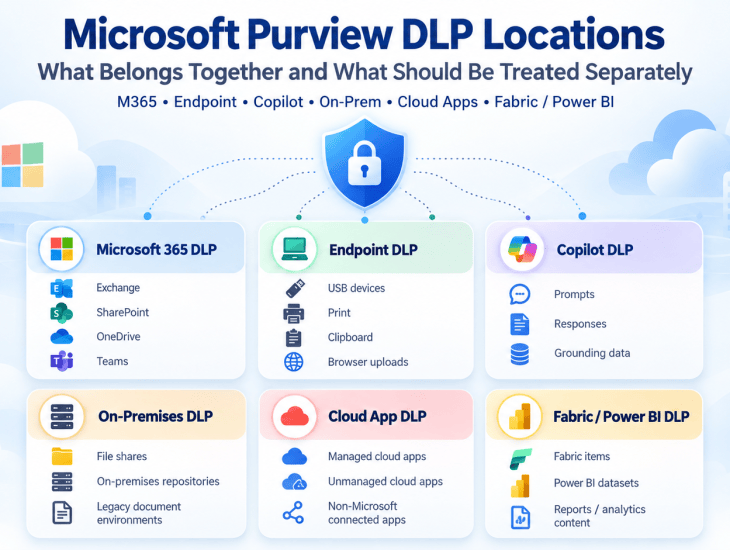
Microsoft Purview Data Loss Prevention has expanded far beyond email and SharePoint.
A common source of confusion is that people use the term “Microsoft 365 DLP” to describe everything in Purview DLP. But in practice, Microsoft now exposes several different DLP locations, and they are not all the same.
The cleanest way to understand the architecture is to separate the traditional Microsoft 365 collaboration workloads from the newer DLP locations such as Endpoint, Copilot, on-premises repositories, Fabric, and cloud applications.
The core Microsoft 365 DLP workloads
The workloads that naturally belong together under Microsoft 365 DLP are:
- Exchange Online
- SharePoint Online
- OneDrive for Business
- Microsoft Teams
These four workloads represent the core Microsoft 365 collaboration environment.
Exchange Online
Exchange DLP protects sensitive information in email.
Typical scenarios include:
- detecting sensitive information in message bodies or attachments;
- warning users before sending sensitive information externally;
- blocking or restricting messages;
- generating DLP alerts;
- using sensitivity labels or Sensitive Information Types as conditions.
A simple example would be:
A user attempts to send a document labeled Confidential to an external recipient.
A DLP policy can detect that condition and warn, audit, restrict, or block the action.
SharePoint Online
SharePoint DLP protects sensitive content stored in SharePoint sites.
Typical scenarios include:
- detecting sensitive documents;
- monitoring external sharing;
- restricting access to sensitive content;
- identifying files containing SITs;
- applying DLP controls based on sensitivity labels.
This is particularly important because SharePoint often contains large volumes of collaborative business data.
OneDrive for Business
OneDrive DLP works similarly to SharePoint DLP but focuses on users’ OneDrive content.
Typical scenarios include:
- sensitive files stored in personal work storage;
- external sharing;
- files containing customer or financial data;
- documents carrying sensitivity labels.
SharePoint and OneDrive are closely related technically, which is why they are often considered together in Purview DLP architecture.
Microsoft Teams
Teams DLP focuses primarily on sensitive information in:
- chat messages;
- channel messages.
It can detect sensitive content in conversations and apply policy actions depending on the configuration.
Files shared through Teams are generally stored in SharePoint or OneDrive, so file protection often involves those workloads as well.
So what belongs together?
The clean grouping is:
Microsoft 365 DLP
Exchange Online
SharePoint Online
OneDrive for Business
Microsoft Teams
These are the core Microsoft 365 collaboration DLP workloads.
But Microsoft Purview DLP now goes much further.
Endpoint DLP is a separate location
Endpoint DLP protects sensitive information when users interact with data on managed devices.
This is fundamentally different from protecting content inside Exchange or SharePoint.
Endpoint DLP can control actions such as:
- copying files to USB devices;
- printing sensitive documents;
- copying content to the clipboard;
- uploading data through browsers;
- moving files to network shares;
- interacting with restricted applications or services.
A simple way to remember it is:
Microsoft 365 DLP protects data in Microsoft 365 services.
Endpoint DLP protects what users do with data on their devices.
Microsoft 365 Copilot is also a separate DLP location
Microsoft 365 Copilot and Copilot Chat now have their own Purview DLP location.
This is important because Copilot introduces a different type of data-security scenario.
DLP can be used to control supported scenarios involving:
- sensitive prompts;
- sensitive information types;
- sensitivity-labeled files;
- sensitivity-labeled emails;
- web grounding;
- Copilot interactions.
So although Copilot is part of Microsoft 365, Copilot DLP should not be grouped technically with Exchange, SharePoint, OneDrive, and Teams.
A cleaner architecture is:
Microsoft 365 DLP
→ Exchange
→ SharePoint
→ OneDrive
→ Teams
Copilot DLP
→ Microsoft 365 Copilot
→ Copilot Chat
On-premises repositories
Purview DLP can also extend to supported on-premises repositories.
This is useful for organizations that still keep significant amounts of sensitive information in:
- file shares;
- on-premises repositories;
- legacy document environments.
This should be treated as its own DLP scope because the architecture, prerequisites, deployment model, and enforcement behavior are different from Microsoft 365 cloud workloads.
Fabric and Power BI
Microsoft Fabric and Power BI also have dedicated Purview data-protection scenarios.
These environments contain analytical and business intelligence data, so they need their own consideration.
Examples include:
- sensitive datasets;
- financial reporting;
- customer analytics;
- executive dashboards;
- regulated business intelligence content.
This is better represented as a separate category:
Analytics DLP
→ Fabric
→ Power BI
Managed and unmanaged cloud applications
Purview is also expanding DLP into cloud application scenarios.
These can include:
- managed cloud apps;
- unmanaged cloud apps;
- non-Microsoft connected applications.
These scenarios are especially important when sensitive information leaves the traditional Microsoft 365 ecosystem.
They may involve integrations with Microsoft Defender for Cloud Apps and other security controls.
A clean way to group all Purview DLP locations
For architecture and customer presentations, I recommend grouping them like this:
1. Microsoft 365 DLP
- Exchange Online
- SharePoint Online
- OneDrive for Business
- Microsoft Teams
2. Endpoint DLP
- Windows devices
- USB
- Clipboard
- Browser uploads
- Application and device actions
3. Copilot DLP
- Microsoft 365 Copilot
- Copilot Chat
- sensitive prompts
- sensitive grounding content
4. On-premises DLP
- file shares
- supported on-premises repositories
5. Analytics DLP
- Microsoft Fabric
- Power BI
6. Cloud application DLP
- managed cloud apps
- unmanaged cloud apps
- non-Microsoft connected applications
This model is easier to understand than putting everything under one generic “DLP” label.
Why the separation matters
The reason to separate these categories is not just presentation.
Each one has different:
- prerequisites;
- licensing considerations;
- policy conditions;
- user experiences;
- enforcement actions;
- technical dependencies;
- deployment risks.
For example, a policy that works well in Exchange does not necessarily translate directly to Endpoint DLP.
Similarly, Copilot DLP is concerned with AI interactions and grounding, which is different from controlling USB or email.
Recommended implementation order
For a new Microsoft Purview project, I would normally approach DLP in this order:
1. Microsoft 365 DLP
Start with Exchange, SharePoint, OneDrive, and Teams.
2. On-premises DLP
If significant sensitive data still exists outside Microsoft 365.
3. Endpoint DLP
Extend protection to user-device actions.
4. Copilot DLP
Protect AI interactions once classification and labeling are stable.
5. Cloud application DLP
Extend protection into SaaS and non-Microsoft cloud applications.
6. Fabric and Power BI DLP
Add analytics protection where those workloads are relevant.
The exact order can vary depending on the organization, but the principle should remain the same:
Start with the most important data locations, stabilize the controls, and then expand progressively.
Final architecture
The easiest way to visualize the Purview DLP model is:
Microsoft 365 DLP
→ Exchange
→ SharePoint
→ OneDrive
→ Teams
Endpoint DLP
→ Device actions
Copilot DLP
→ AI prompts and grounding
On-premises DLP
→ File shares and repositories
Cloud App DLP
→ Managed and unmanaged SaaS applications
Analytics DLP
→ Fabric and Power BI
The key takeaway is simple:
Microsoft Purview DLP is no longer just email and document protection. It is becoming a unified data-protection layer across Microsoft 365, endpoints, AI, cloud applications, analytics, and on-premises data.

