Introduction
In today’s digital workplace, there’s a growing need to identify, classify, and apply protection to the right documents — not just those with specific patterns (like credit cards), but broader content types (e.g., contracts, board meeting minutes, HR documents).
That’s where the trainable classifier capability in Microsoft Purview comes into play: you feed it examples of what you want and what you don’t want, and it learns to recognize them.
What Are Trainable Classifiers?
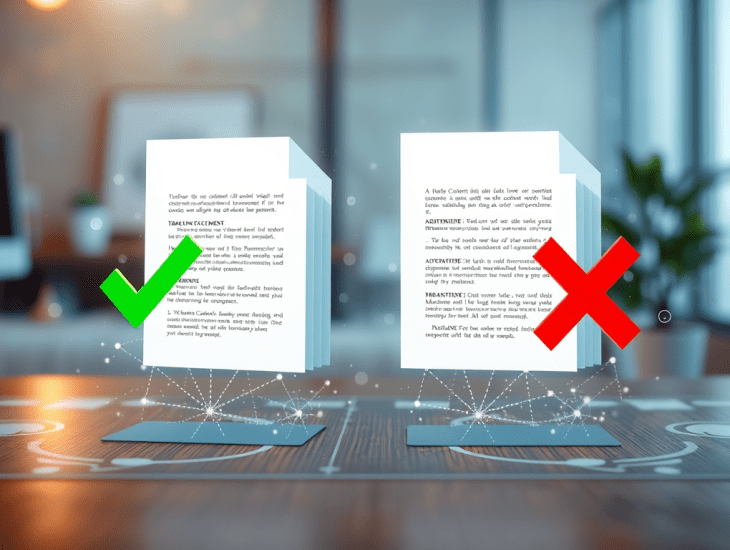
A trainable classifier is a machine-learning-based model in Microsoft Purview that you can train with two sets of input:
- Positive samples: documents that clearly match the category you want to detect. Microsoft Learn+2Microsoft Learn+2
- Negative samples: documents that clearly do not match the category. Microsoft Learn+1
Once trained and published, the classifier can be used as a condition in:
- Sensitivity labels (auto-apply)
- Retention label policies (auto-apply)
- Other compliance or data-governance scenarios. Microsoft Learn+1
Why and When to Use Them
✅ Use-Cases
- When your document type is unstructured, varied, and not easily captured by simple keywords or pattern-matching.
- When you want to automatically detect specific content types across SharePoint, OneDrive, email, teams etc. Transparity
- When you’re ready to scale classification beyond manual tagging or rigid rules.
⚠️ When Not to Use
- If you only need to detect well-defined patterns (credit cards, SSNs) → you might use sensitive information types (SITs), exact data match (EDM) instead. Microsoft Learn+1
- If you don’t have sample documents or the budget/time to train, test, and tune.
How to Create a Custom Trainable Classifier – Step-by-Step
Here’s the standard workflow (ref: Microsoft doc “Get started with trainable classifiers”). Microsoft Learn
1. Prepare Seed Content
- Create two folders (preferably in SharePoint Online) for positive and negative examples. Microsoft Learn+1
- Positive samples: 50 to 500 items. Negative samples: 150 to 1,500 items. Microsoft Learn
- If you create new folders/sites, allow some time for indexing (≈1 hour or more) before pointing them to the classifier. Microsoft Learn
2. Create the Classifier in Purview
- In the Microsoft Purview portal: Data classification → Classifiers → Trainable classifiers → Create trainable classifier. Microsoft Learn+1
- Specify the Positive folder (site, library, folder).
- Specify the Negative folder.
- Review and create.
- The service processes the seed content and builds the predictive model. Status shifts from “In-progress” to “Training is complete / Items have been tested”. Microsoft Learn
3. Test, Validate & Publish
- After the training completes, you should review the predictions: correct matches, false positives, uncertain ones. Microsoft Learn+1
- Once you’re satisfied, Publish the classifier so it becomes available for policies. Microsoft Learn
4. Use the Classifier in a Policy
- In your sensitivity label or retention label policy, you can use the classifier as a condition for auto-apply.
- Monitor matched items / accuracy via Purview’s Content Explorer or matched-items reporting. Microsoft Learn+1
Best Practices & Tips
- Quality over quantity: Better to have well-chosen, clearly representative examples than a large but noisy set. TECHCOMMUNITY.MICROSOFT.COM+1
- Balance your sample sets, especially ensuring negative examples are truly “not the target” content.
- Review and tune: After publishing, monitor how many matches, false positives. Use Purview’s feedback mechanisms. Microsoft Learn
- Check licensing & permissions: You may need Microsoft 365 E5 / E5 Compliance or equivalent to create and use custom trainable classifiers. Microsoft Learn+1
- New tenants may face delays / greyed-out controls: Some admins observe the “Create trainable classifier” button greyed out; check readiness, roles, licensing. Microsoft Learn+1
Limitations & Things to Be Aware Of
- Retraining of a published custom classifier is no longer supported in some scenarios; you might need to recreate with a new seed set. Microsoft Learn
- The contextual summary and feedback features may only work for items created or updated after feature enablement. Microsoft Learn
- Built-in classifiers by Microsoft aren’t exhaustive: they may not cover all languages, regional contexts or custom business-functions. Microsoft Learn
Conclusion
Trainable classifiers in Microsoft Purview provide a powerful way to bring automation and scale to your content classification and governance strategy. When done right — with well-selected seed data, tuning and monitoring — they enable you to identify content that matters, apply labels automatically, and reduce manual overhead.
If you’re starting to build a compliance/governance program, consider whether your business documents meet the “unstructured but important” pattern: if yes, then trainable classifiers may be an excellent fit.
 Abou Conde's Blog